Sometimes you need to block a program from accessing the internet for security or testing purposes.
Whether you're concerned about an application sending telemetry data, want
to prevent automatic updates, or need to test how your software behaves offline, restricting network access gives you greater control over your system.
This guide will walk you through various methods to block programs from connecting to the internet using your operating system's built-in firewall and other security tools.
Windows 11
Using GUI
-
Press
Windows key
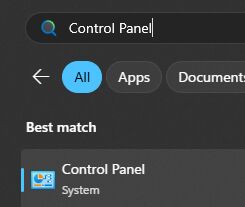
+ S, type Control Panel, and open it.
-
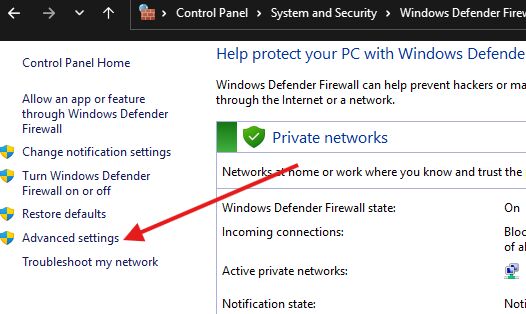
Go to
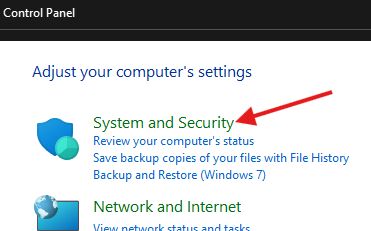
System and Security
>
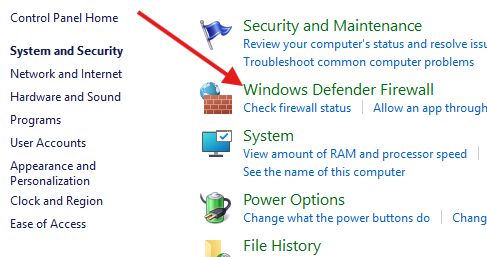
Windows Defender Firewall
-
Click
Advanced settings
from the left panel
-
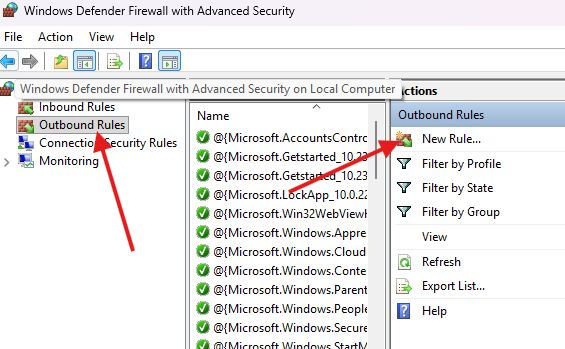
Select
Outbound Rules
, then click
New Rule...
on the right.
-
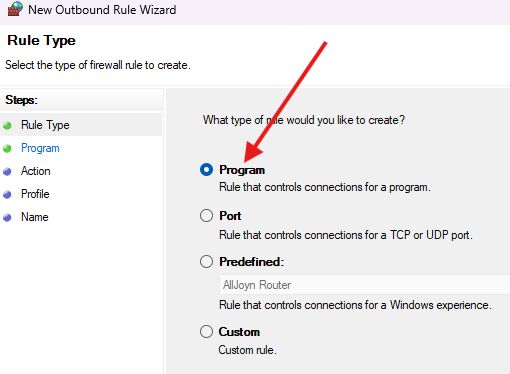
Select
Program
and click
Next
-
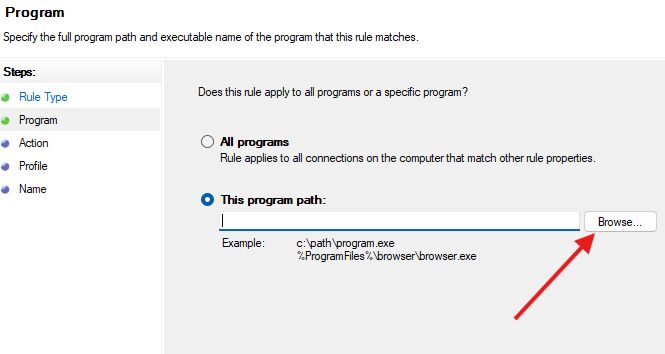
Click Browse, select the .exe file, then click Next
-
Select
Block the connection
and click
Next
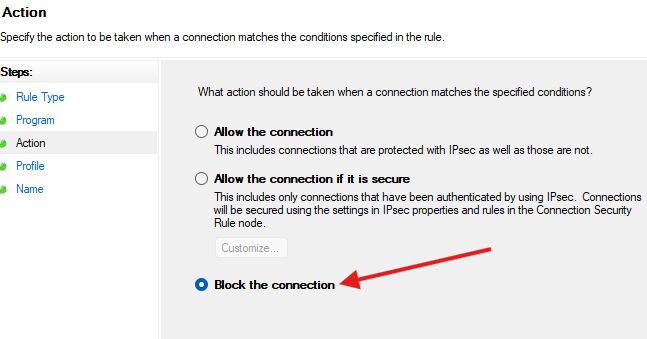
-
Tick all three checkboxes Domain, Private, Public and click
Next
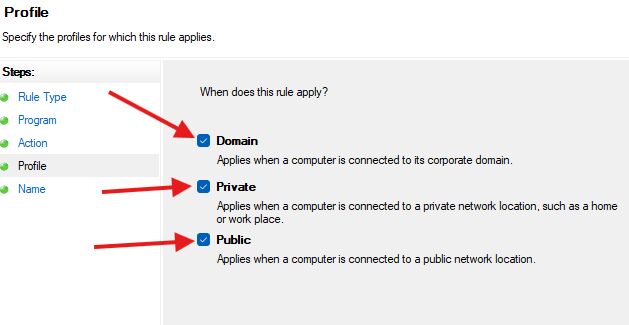
-
Give the rule a Name and click
Finish
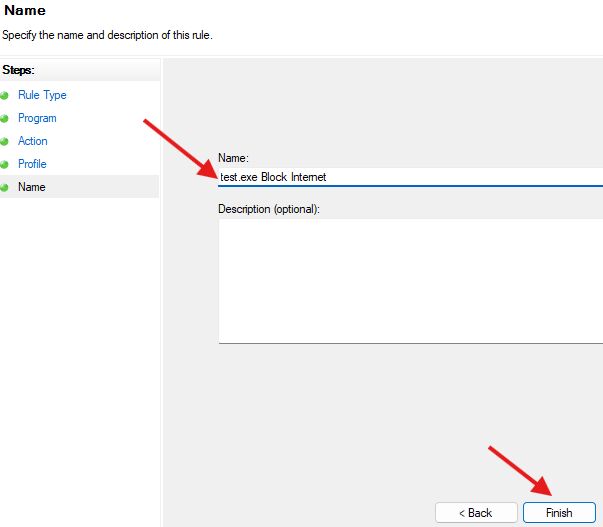
- Now, unless you remove the blocking rule, the test.exe file cannot access the internet.
Using Command Prompt
- Press Windows key + S, type Command Prompt, and open it with Right Click > Run as administrator
-
Run below two commands in Command Prompt, For example if we have a test.exe file in the Desktop, the commands would be:
netsh advfirewall firewall add rule name="Block test.exe TCP" protocol=TCP dir=out action=block program="C:\Users\john\Desktop\test.exe" netsh advfirewall firewall add rule name="Block test.exe UDP" protocol=UDP dir=out action=block program="C:\Users\john\Desktop\test.exe" - In the command above, replace C:\Users\john\Desktop\test.exe with the path of your target file
For Block Microsoft Store Apps
- Store apps are typically installed under C:\Program Files\WindowsApps . You can find the .exe there and apply the same firewall rule as above.
How to Unblock a Program from Accessing the Internet?
-
To unblock the rule you should go like above
Control Panel
>
System and Security
>
Windows Defender Firewall
>
Advanced settings
>
Outbound Rules
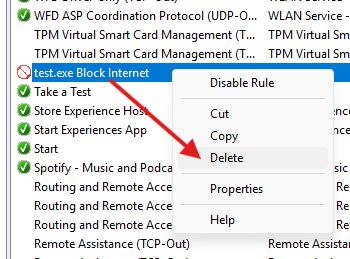
right-click the rule you created, and select Delete (or Disable Rule to temporarily unblock).